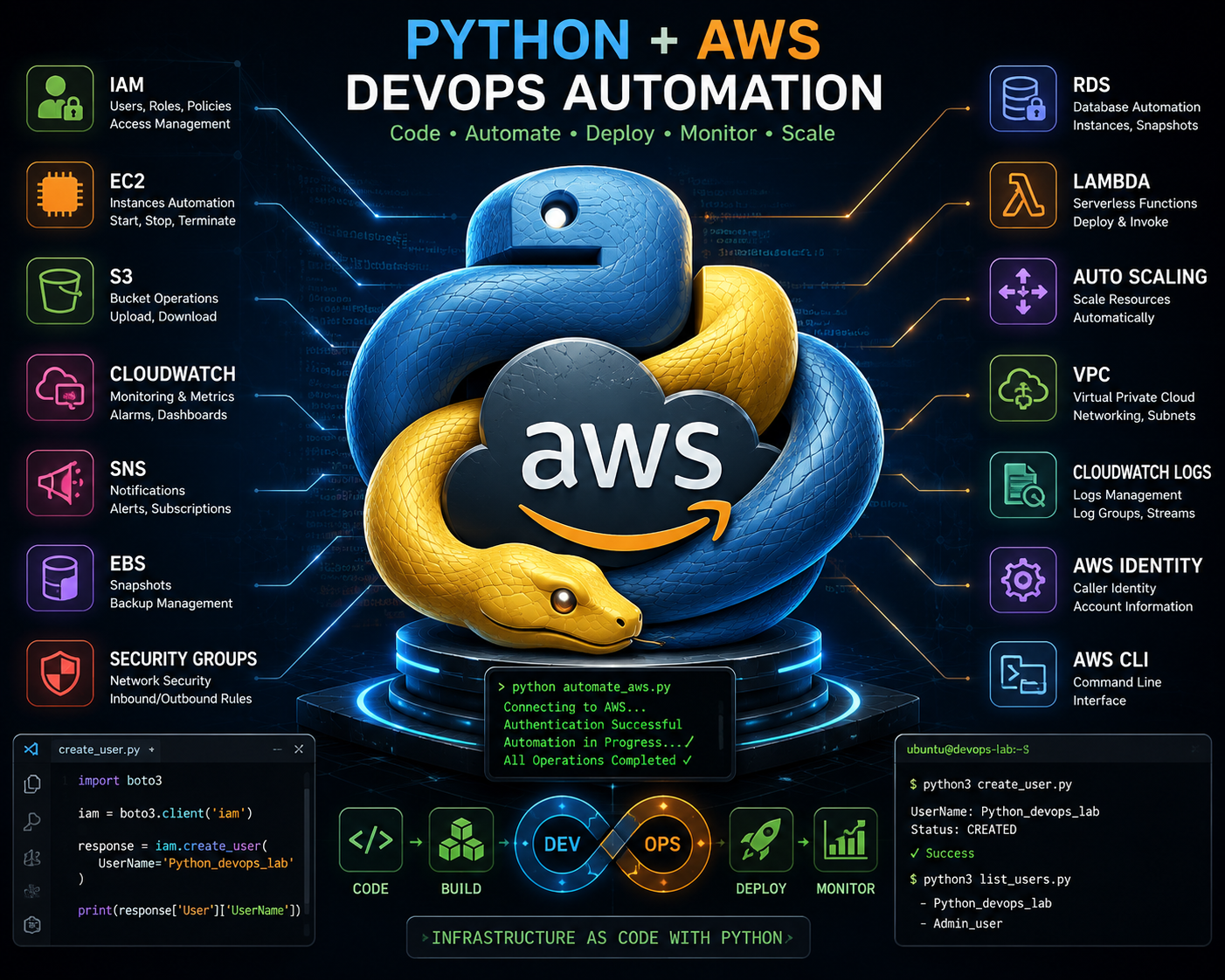
Python + AWS Boto3 DevOps Lab | Simple Step-by-Step Hands-on Guide

Python + AWS Boto3 Complete Hands-on Guide

Iss lab guide me aap seekhenge ki Python aur boto3 library se AWS IAM Users kaise create karte hain. Simple English explanations aur lab ke saare original screenshots niche diye gaye hain!

📌 Quick Lab Plan (Steps):
1. Local Disk (E:) me python/Create IAM folder setup karna.
2. VS Code Terminal me boto3 package install karna.
3. Python script createuser.py banana.
4. NoCredentialsError aur DNS Connection error fix karna.
5. AWS Console me created users verify karna.
STEP 01

Create Folder & Open in VS Code

First, open Windows File Explorer on your computer. Go to Local Disk (E:), create a folder named python, and inside it create a folder called Create IAM[cite: 1].

🖼️ ORIGINAL SCREENSHOT 01 PDF Page 1 — Local Disk (E:) > python folder
📁 Windows File Explorer Address: This PC > Local Disk (E:) > python
📂 Create IAM 22/08/2026, 14:42 | File folder
📂 python-lab 22/08/2026, 14:41 | Empty folder

Now open VS Code and open the Create IAM folder[cite: 1]. When VS Code asks: "Do you want to add containers for this workspace?", select No[cite: 1].

🖼️ ORIGINAL SCREENSHOT 02 PDF Page 1 — VS Code Workspace Dialog
File   Edit   Selection   View   Go   Run CREATE IAM — Visual Studio Code
📄🔍🌿▶️📦
EXPLORER
▼ CREATE IAM
VS Code Dialog: Do you want to add containers for this workspace?
[Yes]   [No]   [Never add for this workspace]
PS E:\python\Create IAM> Type copilot to use Copilot CLI.
Ready UTF-8   CRLF   Python 3.14 (64-bit)
STEP 02

Check AWS Documentation & Install Boto3

Open official AWS Boto3 documentation page in Chrome browser (docs.aws.amazon.com/boto3/latest/guide/iam-example-managing-users.html)[cite: 1]:

🖼️ ORIGINAL SCREENSHOT 03 PDF Page 3 — AWS Boto3 Official Documentation
🌐 Chrome Browser
https://docs.aws.amazon.com/boto3/latest/guide/iam-example-managing-users.html?utm_source=chatgpt.com

Managing IAM users — Boto3 1.43.78 documentation

This Python example shows you how to create a user, list users, update a user name and delete a user using Amazon Web Services (AWS) SDK for Python[cite: 1].

Open VS Code terminal (`Ctrl + ~`) and type the command below to install Boto3 package[cite: 1]:

VS Code Terminal Command
pip install boto3
🖼️ ORIGINAL SCREENSHOT 04 PDF Page 2 — Boto3 Package Installation Output
PS E:\python\Create IAM> pip install boto3
Defaulting to user installation because normal site-packages is not writeable
Collecting boto3
Downloading boto3-1.43.78-py3-none-any.whl (148 kB)
Downloading botocore-1.43.78-py3-none-any.whl (15.7 MB)
Installing collected packages: urllib3, six, jmespath, python-dateutil, botocore, s3transfer, boto3
Successfully installed boto3-1.43.78 botocore-1.43.78 jmespath-1.1.0 python-dateutil-2.9.0.post0 s3transfer-0.19.2 six-1.17.0 urllib3-2.7.0
STEP 03

Create `createuser.py` & First Error

Create a new file named createuser.py in VS Code and write this simple Python code[cite: 1]:

createuser.py
import boto3 # Create IAM client iam = boto3.client('iam') # Create user response = iam.create_user( UserName='Sumit' ) print(response)

⚠️ Error 1: NoCredentialsError

When you run python createuser.py in terminal, Python throws this error[cite: 1]:

🖼️ ORIGINAL SCREENSHOT 05 PDF Pages 5-6 — NoCredentialsError Traceback Exception
PS E:\python\Create IAM> python createuser.py
Traceback (most recent call last):
  File "E:\python\Create IAM\createuser.py", line 7, in <module>
    response = iam.create_user(UserName='Sumit')
  File "C:\Users\DELL\AppData\Roaming\Python\Python314\site-packages\botocore\client.py", line 606, in _api_call
  File "C:\Users\DELL\AppData\Roaming\Python\Python314\site-packages\botocore\auth.py", line 429, in add_auth
    raise NoCredentialsError()
botocore.exceptions.NoCredentialsError: Unable to locate credentials
💡 Why did this error happen?
Python cannot connect to AWS because AWS Access Key ID and AWS Secret Access Key are not configured on your computer yet[cite: 1].
STEP 04

Install AWS CLI v2 & Setup Credentials

To solve the error, download and install AWS Command Line Interface v2 Setup Wizard on Windows[cite: 1]:

🖼️ ORIGINAL SCREENSHOT 06 PDF Pages 8-9 — AWS CLI v2 Setup Wizard Installer
AWS Command Line Interface v2 Setup

Ready to install AWS Command Line Interface v2
Click Install to begin the installation on your computer[cite: 1].

Next, open AWS Console in Chrome. Go to IAM > Users > Create user to create user Sumit, attach policy IAMFullAccess, add tag Python_testing, and generate an Access Key selecting Local code option[cite: 1].

🖼️ ORIGINAL SCREENSHOT 07 PDF Pages 11-14 — AWS Console IAM Access Key Setup
aws   IAM > Users > Sumit > Create access key Global | Account ID: 024988467504
Step 1: Access key best practices & alternatives
🔘 Local code: You plan to use this access key to enable application code in a local development environment to access your AWS account[cite: 1].
Description tag: Python Boto3 IAM Lab | Access Key 1: JAQLULNYEYOKWMPJWI (Active)[cite: 1]

Now open PowerShell terminal and configure your keys[cite: 1]:

PowerShell Command
aws configure
🖼️ ORIGINAL SCREENSHOT 08 PDF Pages 10 & 15 — PowerShell aws configure
PS C:\Users\DELL> aws configure
AWS Access Key ID [None]: AKIAIOSFODNN7EXAMPLE
AWS Secret Access Key [None]: wJalrXUtnFEMI/K7MDENG/bPxRfiCYEXAMPLEKEY
Default region name [None]: ap-south-1
Default output format [None]: json
PS C:\Users\DELL> aws sts get-caller-identity
{"UserId": "AIDAQLULNYEY...", "Account": "024988467504", "Arn": "arn:aws:iam::024988467504:user/Sumit"}
STEP 05

Fix DNS Error & Create User 'Python_lab'

When you update createuser.py to create user UserName='Python_lab' and run it, an internet DNS error might happen[cite: 1]:

🖼️ ORIGINAL SCREENSHOT 09 PDF Pages 16-19 — NameResolutionError Log
urllib3.exceptions.NameResolutionError: AWSHTTPSConnection(host='iam.amazonaws.com', port=443): Failed to resolve 'iam.amazonaws.com'
botocore.exceptions.EndpointConnectionError: Could not connect to the endpoint URL: "https://iam.amazonaws.com/"

Solution: Check network connection using nslookup iam.amazonaws.com and run the Python script again[cite: 1]:

🖼️ ORIGINAL SCREENSHOT 10 PDF Pages 19-20 — Successful Script Execution
PS E:\python\Create IAM> nslookup iam.amazonaws.com
Server: Unknown | Address: 18.146.226.71
Name: iam.amazonaws.com | Addresses: 64:ff9b::2cd8:ba56, 44.216.186.86
PS E:\python\Create IAM> python createuser.py
{'User': {'Path': '/', 'UserName': 'Python_lab', 'UserId': 'AIDAQLULNYEYBI33EJIIS', 'Arn': 'arn:aws:iam::024988467504:user/Python_lab', 'CreateDate': datetime.datetime(2026, 8, 22, 12, 38, 18, tzinfo=tzutc())}, 'ResponseMetadata': {'RequestId': '1e9093e6-ee2b-436c-afe1-c72a6c065a0a', 'HTTPStatusCode': 200, 'RetryAttempts': 0}}
🎉 SUCCESS! IAM User 'Python_lab' created on AWS Cloud!
STEP 06

Verify in AWS Console & Run List Users Script

Open AWS IAM Console (us-east-1.console.aws.amazon.com/iam/home#/users). You can see both users Python_lab and Sumit created in your account[cite: 1]!

🖼️ ORIGINAL SCREENSHOT 11 PDF Page 21 — AWS Console IAM Users Verification
aws   IAM > IAM users (2) Global | Account: 024988467504
User name Path Groups Last activity
Python_lab / 0 -
Sumit / 0 8 minutes ago

Now create list_users.py to print all IAM users directly in your terminal[cite: 1]:

list_users.py
import boto3 # Create IAM client iam = boto3.client('iam') # List users using paginator paginator = iam.get_paginator('list_users') for response in paginator.paginate(): print(response)

Complete AWS Boto3 DevOps Catalog (50 Projects)

Explore all 50 practical AWS Boto3 automation scripts covered in the document[cite: 1]:

#devops #AWS #Boto3 #Python #AWS Automation #EC2 #S3 #IAM #CloudWatch #RDS #VPC #Lambda #Auto Scaling #Python DevOps #Hands-on Lab #Cloud Automation